
Personnel have the option to clock-in.clock-out with the Enable Time Clock and Location Tracking feature that can be turned on from the Employer's profile, under the General Tab.
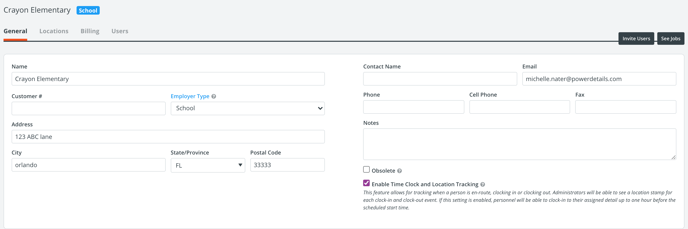
If the feature has been enabled, personnel users will have the ability to clock-in and clock-out via the PowerDetails Mobile Apps.
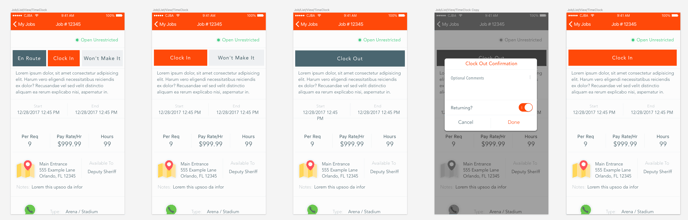
Personnel users will be able to open their upcoming job on the app and if the time is within 1 hour of he Job Start Time and anytime before the Job End Time, they will see options to indicate one of he statuses listed below:
(Employers will only see this if they have a PowerDetails Employer User Accounts active.)
| Status | Description |
| En-route | Allows Employer users to see the personnel status on the job page. |
| Won't make it | This option will set the user status to "No Show" and send an alert to the administrator letting them know the user will not make it to the job. A replacement will need to be found to have he job filled, or the person assigned will need to report this job as a No-Show, when reporting hours. |
| Clock-in | Allows Employer users to see this status on the job page. This status gets recorded as a "Start Time" punch on the site and an administrator will be able to see this status on the time review/billing approval page. |
| Clock-out (will return) | Allows Employer users to see this status on the job page. This status gets recorded as a punch on the site and an administrator will be able to see this status on the time review/billing approval page. |
| Clock-out | This option will ask a personnel user to confirm if hey are sure they want to clock out. It will then set the user status to "Bill Pending" so the user can submit their hours worked, with a summary of the clock punch. An administrator will be able to see this status on the time review/billing approval page. |
Administrators will be able to see the clock-in/clock-out statuses on the Billing Approval screen once personnel have updated their status from the PowerDetails App.
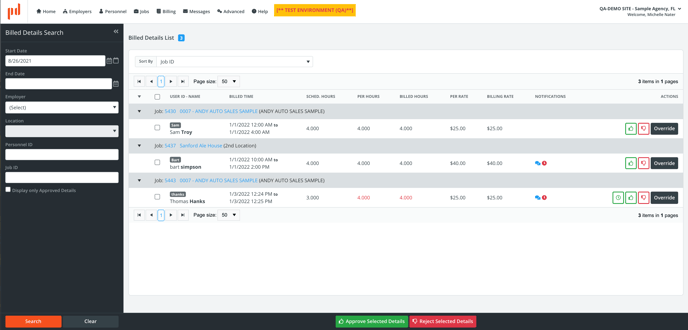
From this screen you are able to select the green clock button  present to to see the time punch entries and location where the punch happened.
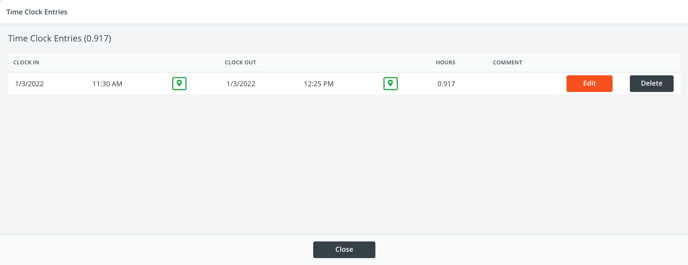
An administrator has the ability to edit the entires in the event that the user made a mistake when submitting their hours by clicking the edit button. A comment is required when making changes to a user's time clock punch.