
The term "Employer" in PowerDetails is synonymous with "customer" or "vendor". Personnel Administrators are able to manage specific employers within PowerDetails, as indicated by site administrators.
Searching for Employer Profiles
To view a list of any of your assigned employer profiles, hover over Advanced and click Employer Search. All columns on this list can be sorted and data can be filtered on the left panel. Clicking the << arrows will collapse the panel if it is not needed.
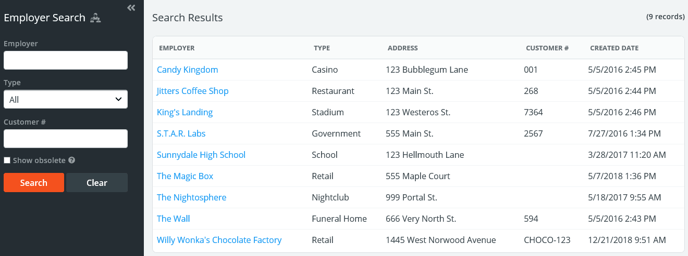
Checking the Show Obsolete box will display any deactivated employer profiles you are associated with.
![]() Employer General Information
Employer General Information
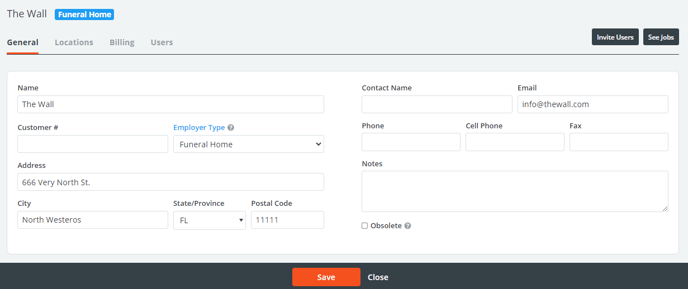
This initial General tab will house the main information of the business or organization your employees are working for. Below is specific information on the fields presented here.
| Field | Description |
| Name | Name of the company |
| Customer # | Optional field to store an internal customer number. This may be required to be a unique entry based on site settings. |
| Employer Type | Defined category of the employer, chosen from a pre-populated drop-down menu by site administrators. |
| Contact Name/Email Phone/Cell Phone/Fax | Optional fields to store information for your main contact at this employer. |
| Obsolete | If checked, this will deactivate the employer profile so no future jobs can be created with it. All historical information will still remain in your site, and you can reactivate the profile at any time. |
| Invite Users button | Not available for Personnel Admins. |
| See Jobs button | Clicking this will bring you to a filtered list on the calendar. |
![]() Employer Locations
Employer Locations
The Locations tab in an employer profiles houses the physical locations where jobs will take place. This tab is especially helpful for franchises or school districts where you are billing to a centralized entity even though employees will work at different places. Locations can also be entered for different assignment areas for large venues. For example, in working at an arena, employees may be stationed at different gates or parking lots. These can all be stored in this tab to select from when creating a job.
To add a location, simply type in a name you would like to use as a reference for this location and the address information. Each time you press save, a new entry line will appear in case you would like to add more later.
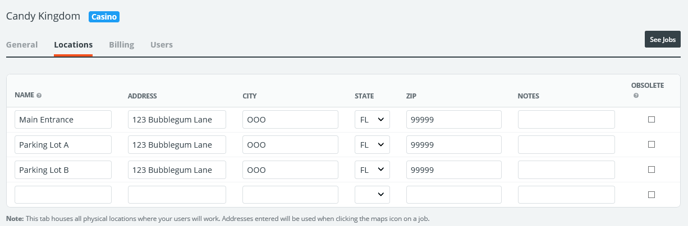
Note: Name, City, State, and Zip are required. You may enter any notes you'd like about the location in the Notes field, or render the location inactive at any time by selecting the Obsolete check box.
To edit a location, simply update the information and press Save.
![]() Employer Billing Information
Employer Billing Information
To add an employer's billing information, click the Billing tab on the employer profile. A General sub-tab will display with the information that will present on this employer's invoices generated in PowerDetails.
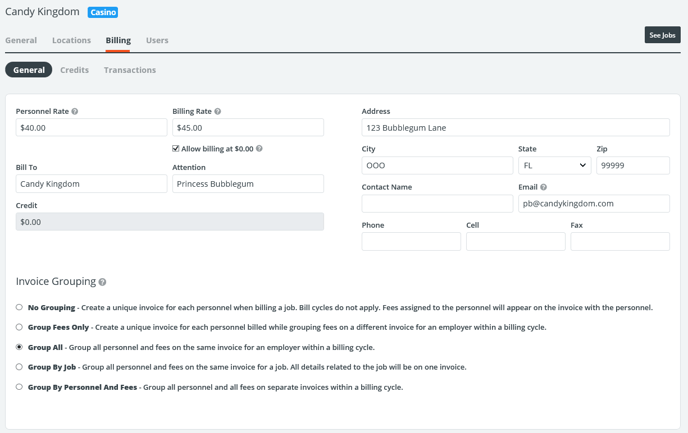
The table below explains the fields General sub-tab above.
| Field | Description |
| Personnel Rate | If you pay personnel at a unique rate that should override entries elsewhere on the site, enter that rate here so it will populate automatically when building a job for this employer. See Rates for more information. |
| Billing Rate | If you charge a unique rate to this employer that should override entries elsewhere on the site, enter that rate here so it will populate automatically when building a job for this employer. See Rates for more information. |
| Allow Billing at $0.00 | Unchecking this box will indicate that jobs for this employer entered with a $0.00 billing rate should be used for scheduling purposes only. Personnel will not be prompted to report hours in this case. |
| Bill To | Billing name of the employer as you would like it to appear on an invoice. |
| Attention | Name of a person or department that invoices should be directed to. |
| Contact Name | Name of the actual billing contact. |
| Credit | Remaining credits (entered manually or via over payments from invoices) for this employer that can be applied to invoices generated in PowerDetails. |
![]() Invoice Grouping
Invoice Grouping
The Invoice Grouping section allows you to choose how you would like to consolidate jobs on invoices within a period of time established by your site billing cycle.
| Invoice Grouping | Explanation |
| No Grouping | Useful when personnel are paid directly by this employer. Generates a unique invoice per person for easy management. |
| Group Fees Only | Useful for when personnel are paid directly by the employer, but you need to send a separate invoice containing fees owed. Fees will group on an invoice according to the bill cycle established in your site settings. |
| Group All | Compiles all personnel and fees on a single invoice from within the bill cycle established in your site settings. |
| Group by Job | Generates a unique invoice per individual job entered on the calendar containing all personnel and fees assigned. |
| Group by Personnel and Fees | Similar to the Group All setting, but will generate one invoices containing all the personnel and one invoice containing all fees (two invoices total). |
See Invoicing and Correcting Billing Mistakes for more information.