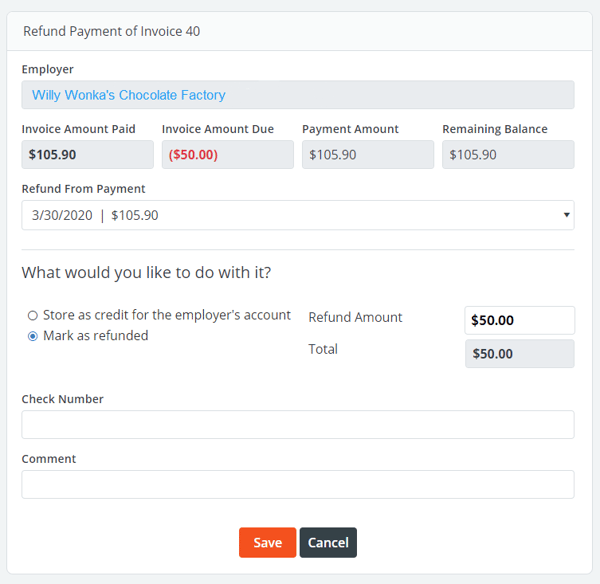
If a payment needs to be removed or refunded, administrators or personnel administrators can issue refunds to vendors.
If a payment needs to be removed or refunded, administrators or personnel administrators will click the link to Refund next to the payment record.
Note: When using PowerDetails Pay - Personnel Direct Deposit, refunds can only be made in full.

Options on how to handle the refund are explained below.
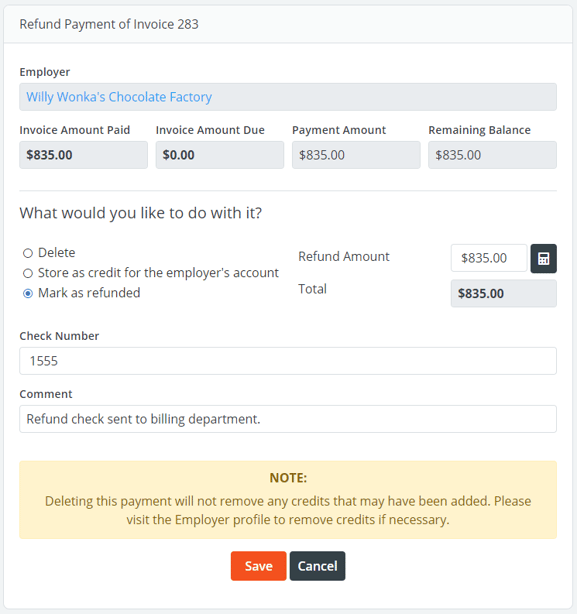
| Option | Description |
| Delete | This option is only available for manual payment entries and will completely remove the record. |
| Store as Credit for the employer's account | Choosing to store the payment as a credit on the employer's account will make it available within the profile's Credit Tab. The credit will then be available to accept on other invoices. |
| Mark as refunded | Allows you to record when the employer received the refund via check or cash. |
| Refund electronically | When this payment record was made via ACH or credit card through PowerDetails Pay, you will have the option to refund the payment back to the corresponding card or bank account. Refund status is available within the PowerDetails Pay Transaction tab. |
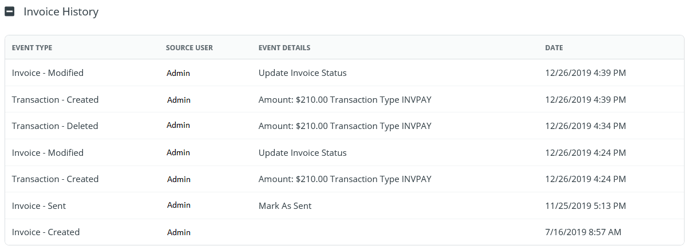
All removed payment transactions will be recorded in the employer profile's Transaction Tab, on the Estimate/Invoice History section at the bottom of the form, and on the system's Event Log.
![]() Credits and Overpayments
Credits and Overpayments
Credits can be entered:
- Manually within an employer profile's billing tab to be applied on future estimates/invoices,
- When refunding an existing payment and choosing to store it in the employer profile for later use
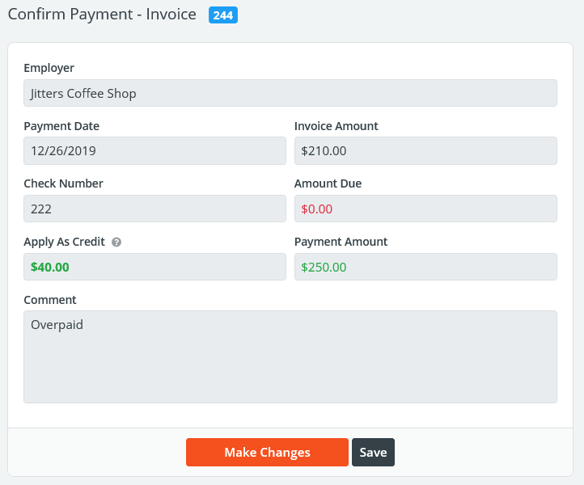
- When entering a payment higher than the amount due (overpayment) on an estimate/invoice, a credit amount will appear under Apply as Credit on the Confirm Payment page. This will be stored within the employer profile and can be used on future invoice payments.
- When jobs did not go as scheduled after an estimate had been created, there may be a resulting overpayment. If this is the case, a red warning icon will display on the invoice search page and on the form.
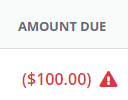
To resolve this, click the icon and enter the amount to refund. You will have the option to refund the payment manually (if you wrote a check or sent cash back to the employer), store the overpayment as credit to the employer's account, or issue a refund electronically if the payment was made via credit card or ACH.