
When employers send payment for an invoice or estimate, Personnel Administrators may have the option to record it on an estimate/invoice form. Check with your site administrator if you have questions about access to this module.
Entering Payment for an Estimate or Invoice
Regular Personnel users may also record payments when reporting hours if certain administrator settings are in place.
Hover over Billing on the top menu bar and click Estimate Search or Invoice Search to locate the appropriate estimate/invoice using desired filters on the left search panel. Click on the ID to open the form and scroll down to the Payments section.
Click Receive Payment to enter the payment details for an individual estimate or invoice. Read more below on how to enter specific types of payments.
Sites paying personnel through direct deposit will display a payment calculator containing all line items. Check the box of the line items you would like to pay, and the Payment Amount field will update automatically.
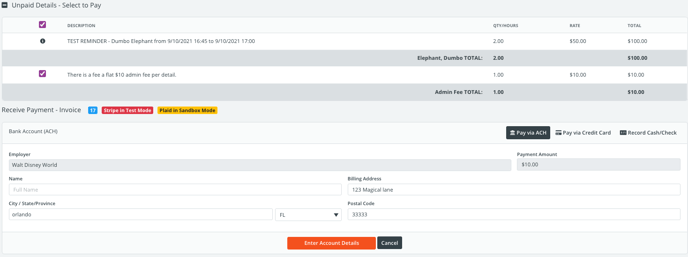
Employees that have not registered their bank account for direct deposit or whose job has not yet been reviewed by an administrator cannot be paid on this screen. Check or cash payments must instead be recorded.
When paying via either electronic or non-electronic methods, line items that cannot be paid will display either a yellow warning icon  or an exclamation icon
  to indicate this. Hover over the icon to view the explanation.
![]() Entering a manual payment
Entering a manual payment
Manual payments, such as a check or cash received, can be recorded in PowerDetails as a standard feature on estimates and invoices. When entering a manual payment, use the Payment From drop down menu to define the method of payment. Record the check number if applicable and enter a comment (optional).
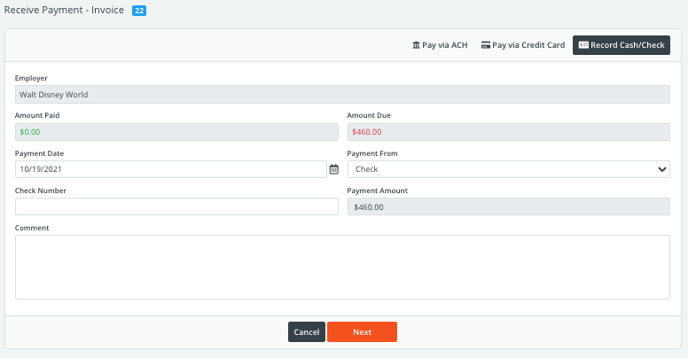
Click Next to review the payment entry and press Save or Make Changes if needed. The record will then appear on the estimate/invoice's Payments section.

![]() Entering a Credit Card Payment
Entering a Credit Card Payment
If your site has PowerDetails Pay enabled, you will see an option to enter credit card information when clicking to Pay Now. PowerDetails Pay is powered by Stripe.
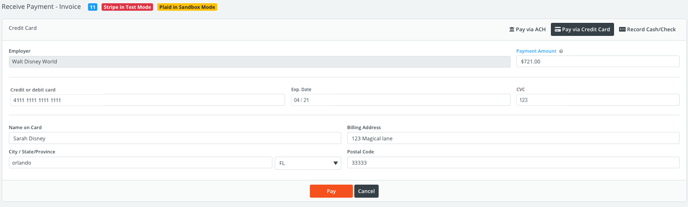
Enter the credit or debt card information along with the payment amount. The amount will default to the balance on the estimate/invoice, but can be changed for partial payments. Click Pay to review and confirm the payment.
Note that every credit card payment incurs a processing fee as indicated in your site's PowerDetails Pay settings.
If the employer is responsible for the processing fee, it will be added on when confirming the final payment amount (see image below). If your agency is responsible for the processing fee instead, it will simply be deducted from the deposit and will not be shown to the employer.
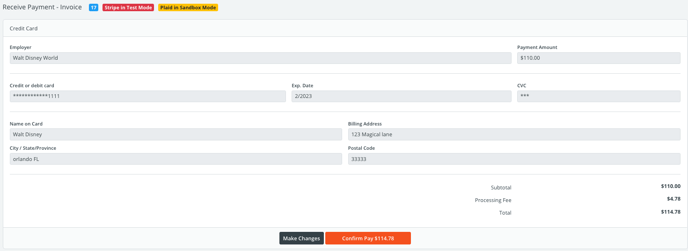
A printable payment receipt will appear for your records. Additionally, a PowerDetails message and alert (if enabled) will also be sent to administrators and an email will be sent to the billing email address of the associated employer.
The completed transaction will show within the estimate/invoice's Payments section along with the Transaction ID. This can be used to reference any payout questions within the PowerDetails Pay Transaction tab, or when contacting the PowerDetails support team.

![]() Entering an ACH (Bank Account) Payment
Entering an ACH (Bank Account) Payment
If your site has PowerDetails Pay enabled, you may see an option to enter bank account information when clicking to Pay Now.
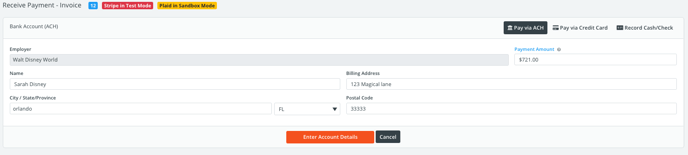
PowerDetails Pay uses Plaid to link to the payee's bank account. Click to Continue and enter the credentials after selecting your bank. Once connected, you will be able to select an account to pay from.
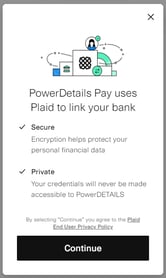
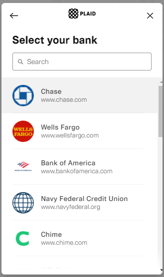
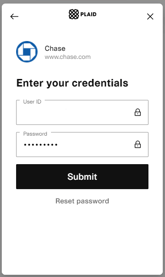
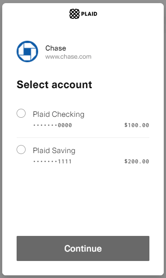
Note that every ACH payment incurs a processing fee as indicated in your site's PowerDetails Pay settings.
If the employer is responsible for the processing fee, it will be added on when confirming the final payment amount (see image below). If your agency is responsible for the processing fee instead, it will simply be deducted from the deposit and will not be shown to the employer.
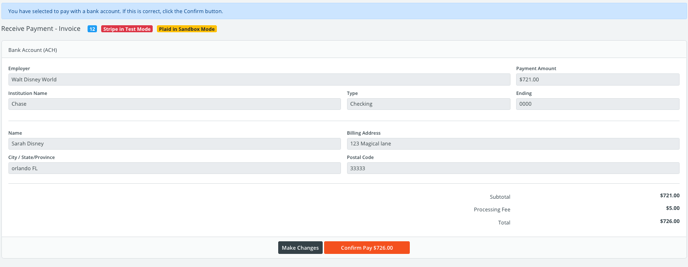
A printable payment receipt will appear for your records. Additionally, a PowerDetails message and alert (if enabled) will also be sent to administrators and an email will be sent to the billing email address of the associated employer.
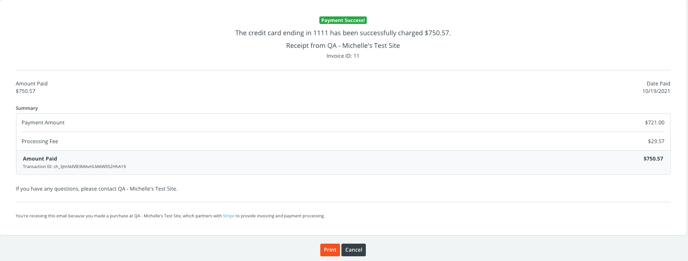
The completed transaction will show within the estimate/invoice's Payments section along with the Transaction ID. This can be used to reference any payout questions within the PowerDetails Pay Transaction tab, or when contacting the PowerDetails support team.

Payments are reflected in the employer's bank statement 1-2 days after the charge succeeds.