
Users with a personnel profile are able to perform actions like applying for jobs and reporting hours worked.
Personnel profiles can either be created by an administrator or requested by personnel via a link. Read on to learn how to search for and manage personnel profiles.
![]() Personnel Search
Personnel Search
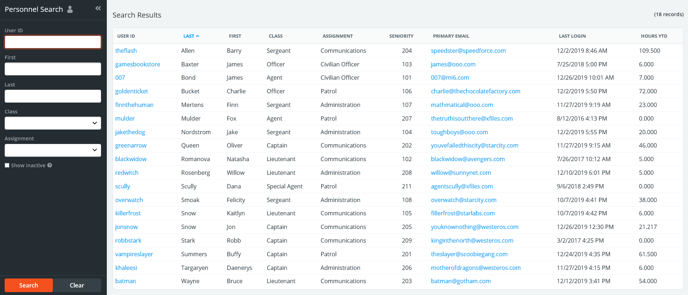
To view existing personnel information, hover over Personnel on the top menu bar and click Personnel Search. All of columns in the grid below can be clicked to sort, and the left search panel can be used to locate specific users.
If you created any custom data columns in your site configurations, these will appear on the right of the search page. In the image below, Hours YTD is a custom column used by administrators to quickly reference.
Note: To view deactivated profiles, check the Show Inactive box on the left search panel.
![]() Creating Personnel Profiles
Creating Personnel Profiles
To add a new employee to your site, hover over Personnel on the top menu bar, then click New Personnel.
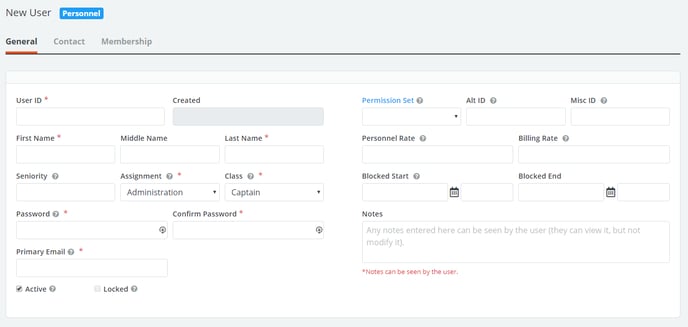
The table below lists details about the fields presented on a new profile page within the General tab.
| Field | Description |
| User ID | Unique ID this user will use to log in with. This is unchangeable once the profile is created. |
| Created | Date and time the personnel account was created (read-only) |
| Seniority | Numerical value indicating the employee’s rank/order within your organization. See Seniority for more information. |
| Assignment | Drop-down menu of Personnel Assignments created to categorize a user's department/unit/squad. |
| Class | Drop-down menu of Personnel Classes created to categorize a user's hierarchical rank. |
| Password/ Confirm Password |
These fields will set the user's initial password. Administrators can later manually reset passwords here once the profile is created. Passwords must contain at least 6 characters. Other requirements can be set via site settings. These fields will always appear "blank" after the profile is saved to ensure they cannot be seen. |
| Primary Email | The email address entered here will be used if the user needs to reset their password. |
| Active | When checked, indicates that the user can log in to the system. |
| Locked | When checked, indicates that the user has experienced 5 failed login attempts. Administrators can uncheck this box to unlock the account and press save. |
| Permission Set | Allows for the assignment of a pre-built Permission Set. |
| Alt ID | Optional field that can be used for information like hire date, badge number, employee IDs, etc. |
| Misc ID | Optional field that can be used for information like hire date, badge number, employee IDs, etc. |
| Personnel Rate | Can be used to specify a pay rate unique to this person when they are assigned to a job. Leave this blank to default to either Personnel Class rates or Global Rates. See Rate Hierarchy for more information. |
| Billing Rate | Can be used to specify a billing rate unique to this person when they are assigned to a job. Leave this blank to default to either Personnel Class rates or Global Rates. See Rate Hierarchy for more information. |
| Blocked Start/End | If dates and times are entered here, this user will be unable to apply for jobs if they sign into the system during the times specified. Can be used for personnel in training, on probation, or for disciplinary action. During this time, the user will still be able to report hours and view the calendar. |
| Notes | Can be used to store any comments regarding this user. These can be seen by the person with this account. |
Press Save to add this profile to your site. Click the message icon  on the top right of the newly saved profile to send a message to this user with login information.
![]() Contact Tab
Contact Tab
Personnel are able to set up their own contact information and alerts. However, administrators may view and edit these at any time. Once a profile is created, click the Contact tab to view the profile's alert settings.
See Messaging on how to properly configure alert addresses.
![]() Membership Tab
Membership Tab
The membership tab allows administrators to see what groups personnel are assigned to and make any changes needed. To add or remove a group that this person is assigned to, click the group icon  on the left panel.
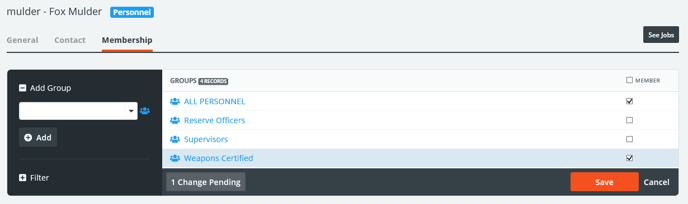
Simply check or uncheck the boxes next to the group(s) you would like this user associated with. The panel on the left can be used to filter through the available groups on your site.
![]() Requesting Personnel Profiles
Requesting Personnel Profiles
Aside from administrators adding new employees to their database, personnel themselves can follow a unique link to request their own accounts. This saves administrators a lot of time, so many choose to offer this feature to new employees. Personnel should contact an administrator to obtain the appropriate link. This link can be found by administrators under Help and clicking About PowerDetails.
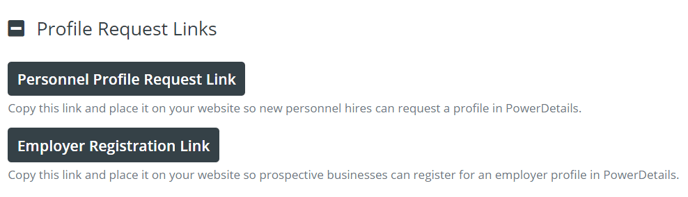
When potential users open this link, they will see an empty form.
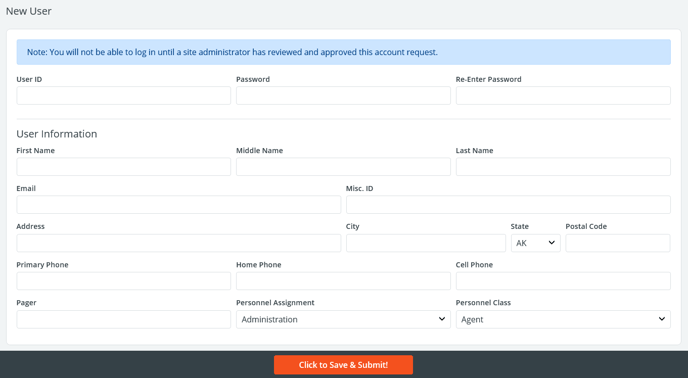
See the table in Creating Personnel Profiles for an explanation of these fields.
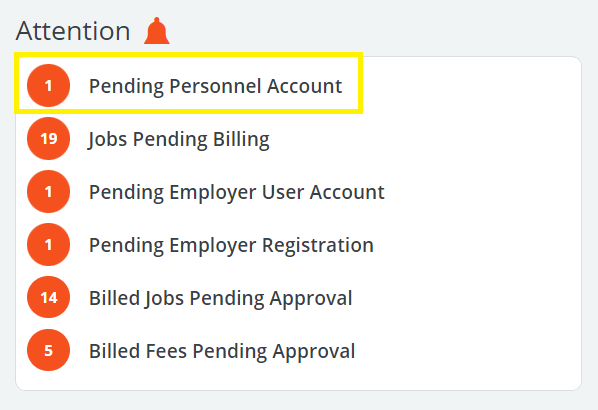
After clicking to Save & Submit their account request, this information is sent to administrators to approve. Administrators will see a notification on the administrator home page that an account request has been submitted.
![]() Reviewing Profile Requests
Reviewing Profile Requests
View a list of requested profiles by clicking the link in the Attention box, or by going to the Personnel menu and clicking Pending Personnel.
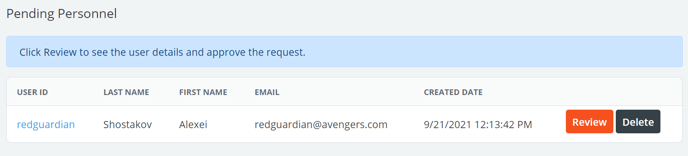
Click Review to view the profile submitted and approve the request, or click Delete to remove the requested profile.
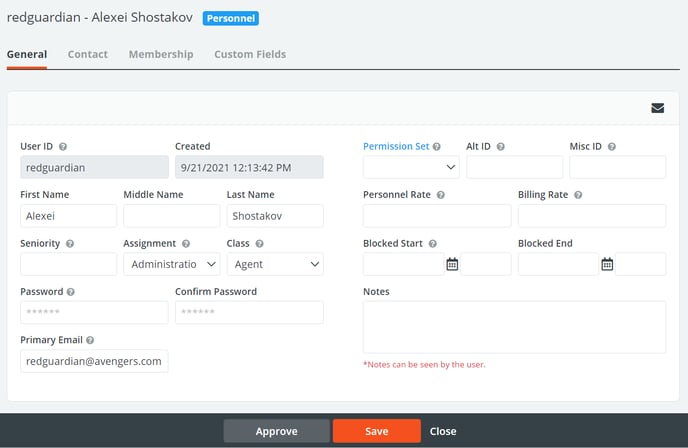
After clicking the button to Approve the requested personnel profile, the user will be notified of their approval at the Primary Email indicated in their profile with a link to log into the site.