As an Employer vendor using PowerDetails, you have the ability to request jobs to be worked at your location.
To request a job through PowerDetails, hover over the Jobs menu and click New Job. You will see a form with information to complete and send to the agency for review and approval.
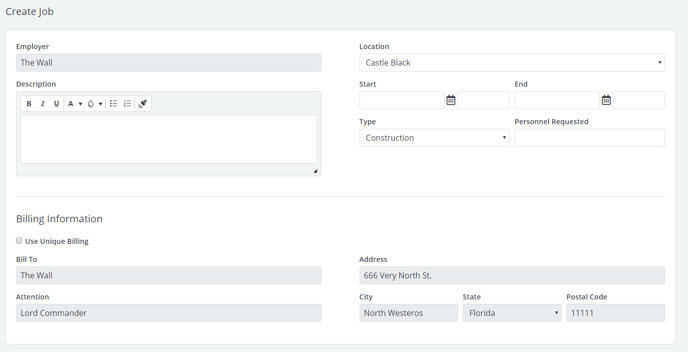
Below is an explanation of the fields on this form.
|
Field |
Description |
|
Location |
Drop-down menu containing your physical locations. These can be managed under Jobs on the top menu bar and clicking Locations. |
|
Description |
Brief summary of what the job will entail. |
|
Start/End |
Date and time the shift begins and ends. The calendar buttons next to each field may be used to find a date. |
|
Job Type |
Available job categories from the agency. Select which one describes the job best. |
|
Personnel Requested |
How many people you expect are needed for this job. |
|
Use Unique Billing |
If you need the invoice sent to a different address than what is listed as the default here, check the box so you may edit the fields. If this needs to be changed permanently, contact a site administrator at the agency. |
Once the agency has approved the requested job, it will become available for their staff to apply for. If you have opted to receive alerts, you will be notified once the job is approved and if it has been filled.
![]() Recurring Jobs
Recurring Jobs
If the same job you requested will be happening again in some type of recurring pattern, you can click the Add Recurrence button to create more.
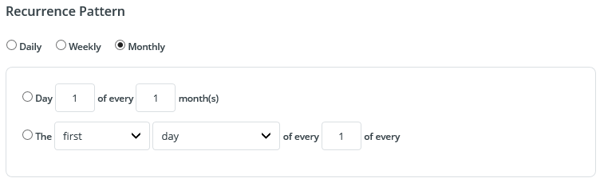
The options under Recurrence Pattern will change depending on which radio button (Daily, Weekly, and Monthly options) you have selected. Simply choose the appropriate pattern to indicate how often you want the job to recur.
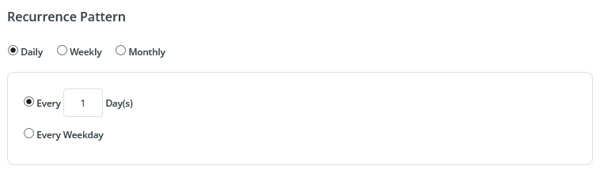
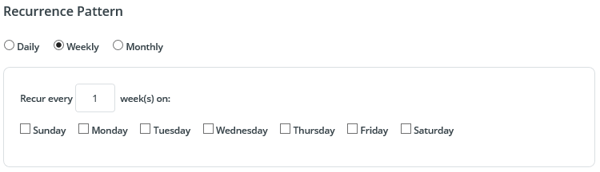
After selecting how often you want the detail to occur, you must specify how long you want the recurrence to last. Under the Range of Recurrence section, click the calendar next to the Start field to specify the start date. Choose the next date the job will happen in order to avoid duplicating the original, existing job.
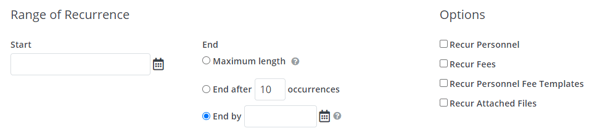
For the End field, you may choose to stop the recurrence in one of the following ways:
- Maximum Length - Ends 1 year after the Start Date
- End After X Occurrences - Allows you to type in the number of recurrences
- End by - End the recurrence on a specific date. Choose the next day following the last day you want the job to happen (for example, if I want the last job to happen on 9/31/19, I would select 10/1/19 as the End Date).
![]() Cancelling (Terminating) a Job
Cancelling (Terminating) a Job
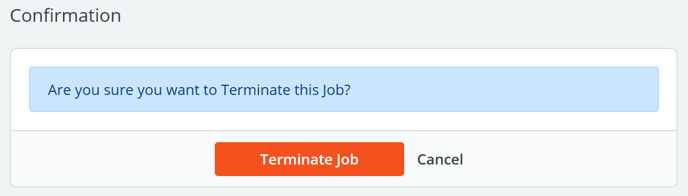
Jobs can be cancelled by the employer prior to the administrator’s approval. Once a job is approved, you must contact them to cancel it. To cancel a detail, click on Terminate Job at bottom of the detail that was created, and the box below will appear.