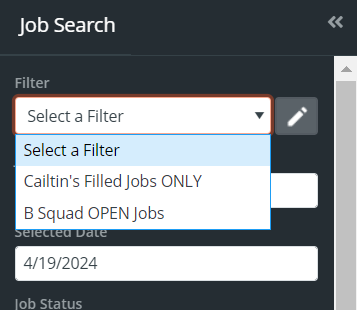
Filtering selections within the job search and job calendar pages can now be saved for future use without having to select filtering criteria each search attempt. Save frequent searches to save time looking for specific data.
To set up or use the saved filters, administrators or personnel admins can navigate to the job search or job calendar pages. In the left search field, at the top, use the drop-down arrow to select a saved search filter, or use the pencil icon to create a filter to save.
(Jobs>Job Search/Job Calendar)
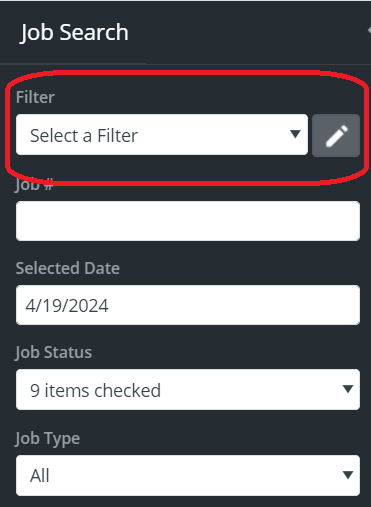
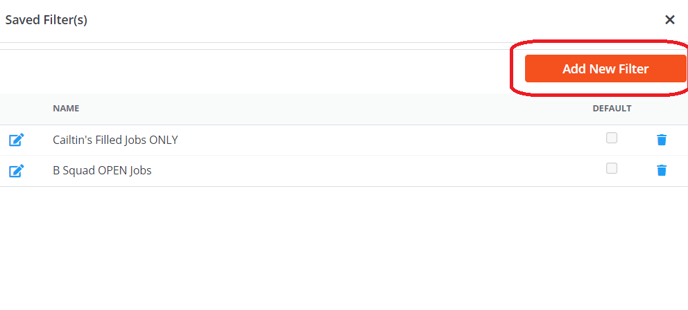
By clicking the pencil icon and then clicking the "Add New Filter" button, begin to select the data criteria to filter.
Set a title and choose from several different fields and code table categorizations. Once complete, decide if this new filter should be a default filter by checking the default checkbox. This will ensure that each login, the calendar/search page will automatically apply the desired filter without interaction.
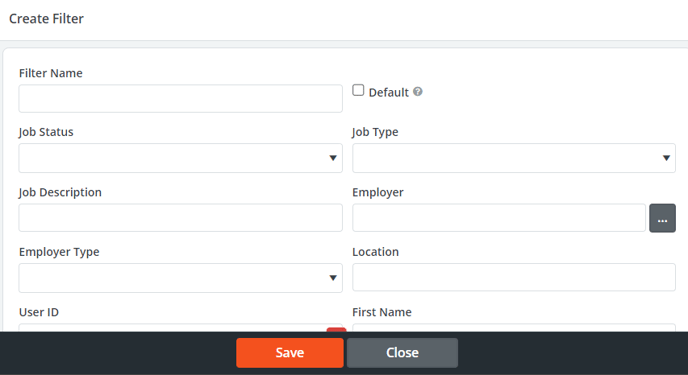
Just as a filter can be marked as a default, by entering into the filter after creation, the default setting can be removed by unchecking the default checkbox. Further, information can be changed at any time and saved to apply the changes to the filter moving forward.
Delete a filter by using the trashcan icon when accessing the filters list (pencil icon).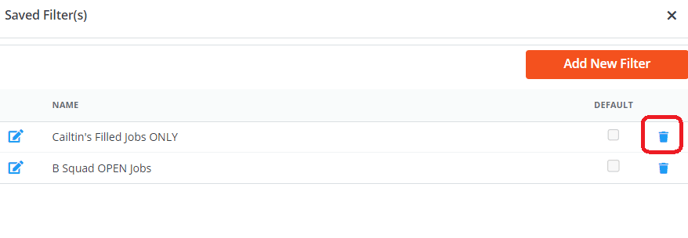
Once the filters are saved. Administrators and personnel admins can access the list of saved filters by using the drop-down menu at the top of the search fields on the job search or job calendar pages.