![pd-logo-color-1.png]](https://support.powerdetails.com/hs-fs/hubfs/pd-logo-color-1.png?width=200&height=40&name=pd-logo-color-1.png)
**INSERT YOUTUBE VIEDO ONCE PUBLISHED**
Manually Adding/Changing Invoice Comments
To manually add additional language or change existing invoice comments, administrators and/or personnel administrators should navigate to an existing invoice within invoice search.
(Billing>Invoice Search>Invoice ID #)
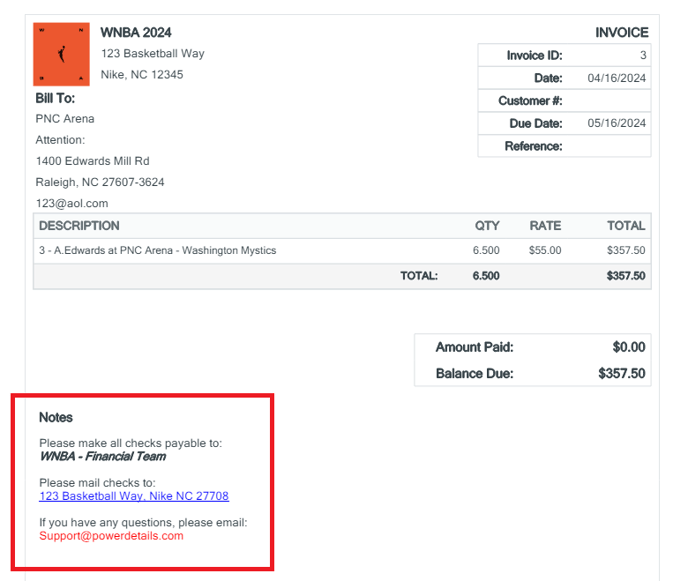
Once the invoice is open, in the upper left-hand corner, click within the box titled "Commet", just below the "Employer" field. Alter the existing verbiage or add additional text.
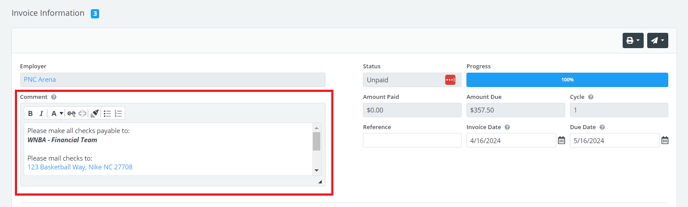 Save any changes made to the invoice comments to appear on the next printed or downloaded version.
Updating the Saved Agreements (Invoice Comment)
To update the existing, or add a preset, invoice comment via the saved agreements section, navigate to the agreements within the platform.
(Advanced>Site Config>Agreements>Invoice Comment)
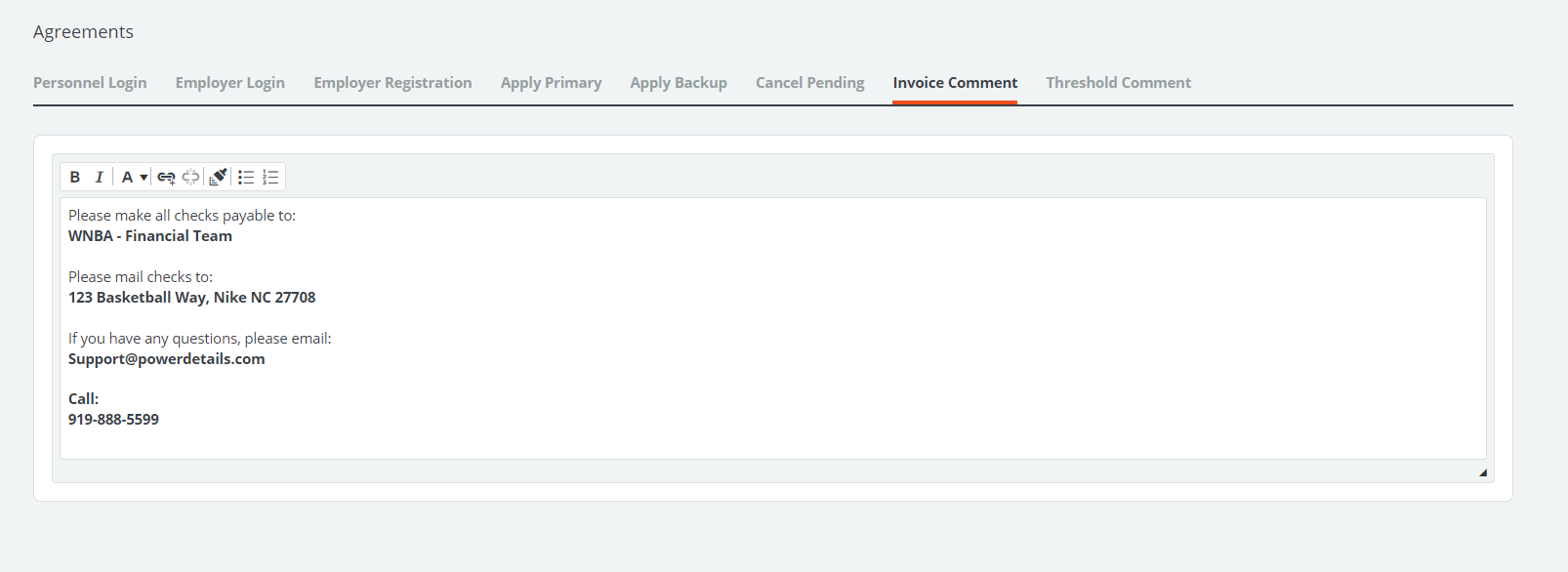
Add/Change the text by typing in the field. Save any updates to apply the text to the invoice comment section. If any changes are made, note that they will appear on ALL future generated invoices as these changes are NOT retroactive.
Invoice comments, both manually added and set within the agreement, can contain links, lists, and other specialized formatting to make text stand out or interactive.